
Closing audits and sharing results
The approval and closing stage of the agile audit execution delivers end-to-end support for concluding audit engagements, capturing findings within the Audit app, and sharing outcomes with stakeholders outside the app. Audit teams of all sizes, who need a streamlined, integrated alternative to spreadsheets for documenting results and communicating impact to stakeholders, can use the Results tab to create and manage audit findings and actions.
Workflow
To get a more detailed understanding of the workflow of closing an audit and managing audit findings and actions, see the workflow diagram and table below:
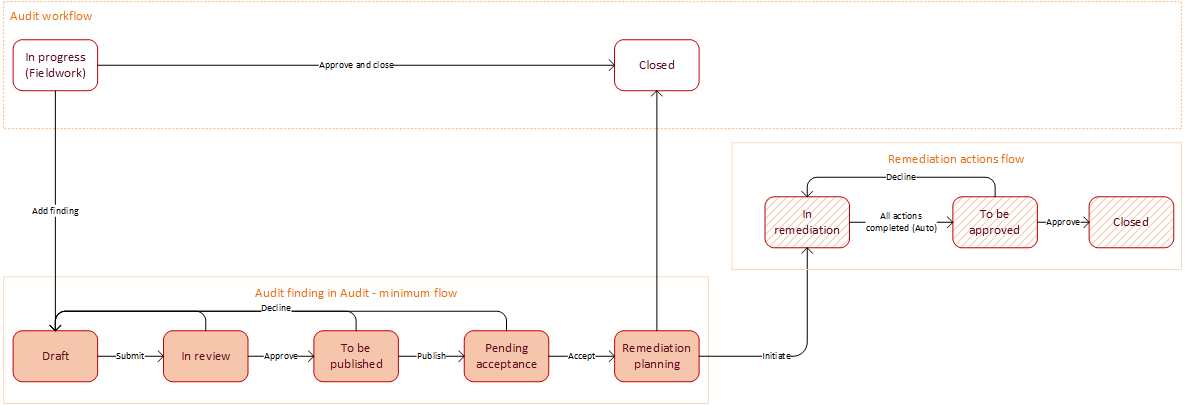
| Status | Description |
|---|---|
| Draft | The finding (or issue) has been created by the Auditor, but it is not submitted yet to the managers. An Auditor can still work on defining the finding. |
| In review | The finding has been created and is waiting for an Audit Manager to decide whether to approve the finding or not. |
| To be published | The finding has been defined and approved. It is waiting for an Audit Manager to publish it. |
| Pending acceptance | The finding is waiting for the Issue owner to accept it. An Audit Manager can accept it in place of the owner while capturing the management response. |
| Remediation planning | Audit Manager has assigned the finding and waiting for the Issue owner to finalize and initiate the remediation plan. |
| In remediation | The remediation plan has been finalized and initiated. Remediation action owners can work on their actions based on the execution type of the Issue. The finding is waiting for all actions to be completed. |
| To be approved | The remediation plan has been executed and the finding is waiting for the finding approver (Audit Manager) to approve or decline the whole Issue. |
| Closed | The finding has been solved and closed. Nobody can do anything with the issue anymore. |
| Discarded |
The finding has been discarded. The status the finding was in and what has been completed in it are not defined. Note Discarded status is not included in the diagram. |
Adding ratings and conclusion
Summarize and close audits by recording the final rating and overall engagement result on the Results tab, completing the audit lifecycle from planning through closure in a single workflow on Audit.
-
Select the Results tab in your audit.
-
In the Audit results - Overview section, from the Overall rating dropdown menu, select a rating for the audit.
-
In the Overall conclusion field, enter a conclusion that covers the entirety of the audit. You can use the Writing Assistant to write and refine content in the field. For more information about the writing assistant, go to AI Writing Assistant
Reviewing audit findings
The Audit app, using shared services, centralizes audit findings making it easier to define, list, summarize, and review findings. On the Results tab, you can provide an audit-level finding that encompasses all the individual findings.
-
Select the Results tab and navigate to the Findings and actions section to review graphs and tables for all the individual findings (also known as issues).
-
Select Add finding to add an audit-level finding, and in the Add finding side panel, enter and select information for the following fields:
-
In the Name field, you must enter a unique and valid name for the finding.
-
In the Owner field, enter at least 3 characters of the owner's name and select from the available options.
-
From the Classification dropdown menu, select whether the finding is a Deficiency or a Recommendation.
-
From the Severity dropdown menu, select the severity of the finding.
-
In the Description field, enter a description of your finding.
-
Select the Include in audit report checkbox to include this finding in the final audit report.
-
Select Add.
-
-
In the Search by ID or name field in the All findings section, enter the ID or name of a finding you want to search for.
-
Optional: Select an Issue name to open the control test finding. For more information about findings related to control test issues, go to Working with issues.
Presenting audit findings
Audit captures management responses and remediation plans by collecting auditee responses to findings. Audit also facilitates action planning and tracking for accepted remediation activities. Audit Managers or the Head of Audit can use the Results tab to review the findings at the individual test and audit level, and respond and accept these findings.
-
Select the Results tab and navigate to the Audit results - Overview section.
-
In the Management response field, Audit Managers or the Head of Audit can enter a response to the findings and conclusion.
Exporting audit reports
Create and export audit reports that present audit outcomes and remediation status in a format that is easy to share with stakeholders.
Note
You can create and export an interim audit report before the final audit-level findings are added and reviews are completed.
-
Select Export PDF to export a PDF of the audit report.
Approving and closing the audit
Audit Managers or the Head of Audit can provide final approval and engagement sign‑off in Audit, ensuring the audit can be formally approved and closed with a clear record of decisions and statuses in the app.
Note
You can only close an audit if the control tests have been completed, the results have been added, and the findings are accepted by owners (Remediation planning state or higher).
Only the Head of Audit or the Audit Manager can accept and close an audit.
-
Select Approve & Close at the top of the audit that you want to approve and close.
